Best Video Format for Instagram: MP4, H.264, 9:16
Quick answer
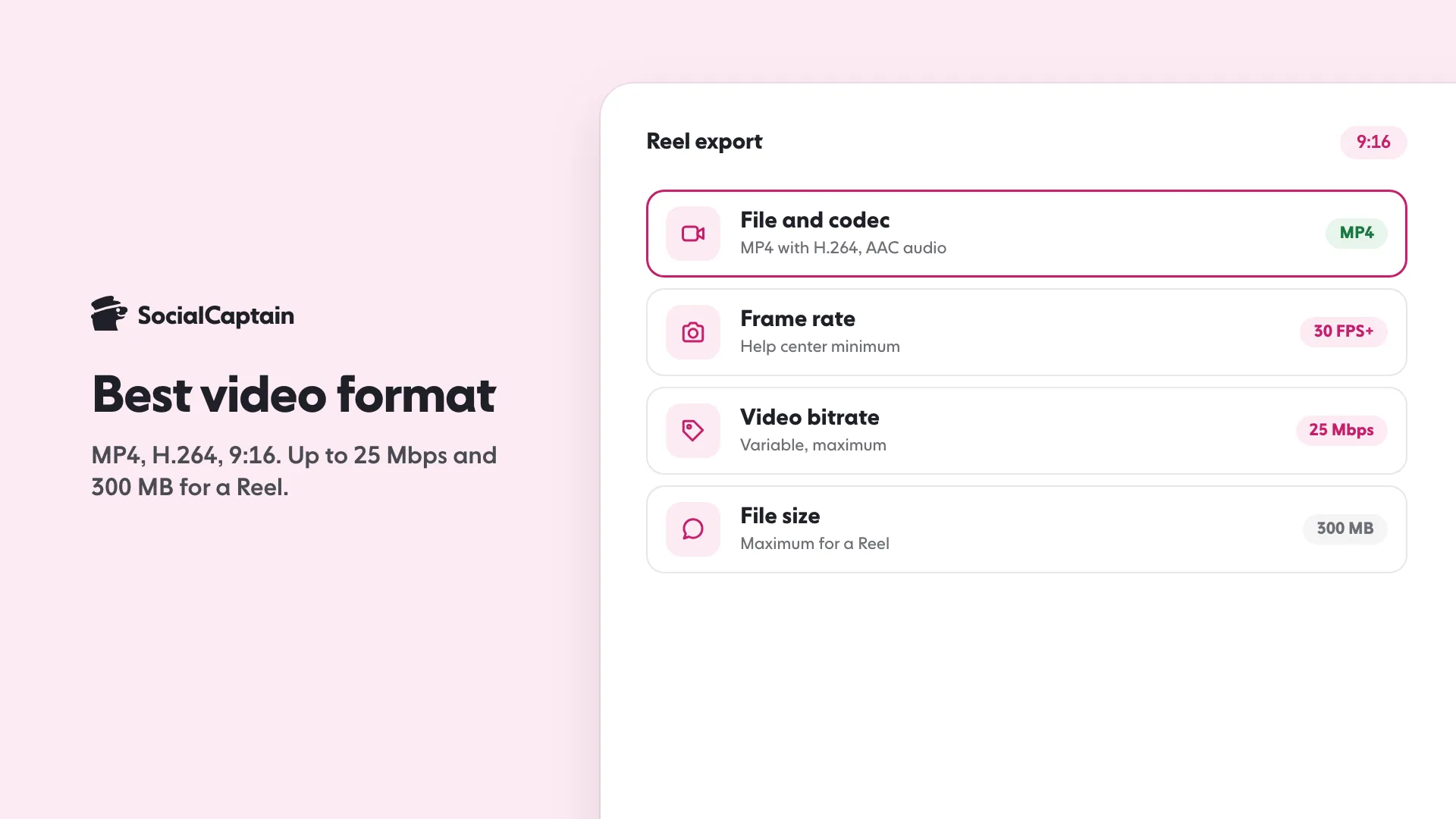
The best video format for Instagram is an MP4 with H.264 video and AAC audio, exported vertical at 9:16. Meta's publishing documentation allows 23 to 60 FPS, 25 Mbps maximum and 300 MB for a Reel.
- MP4, H.264, AAC, 9:16, 30 FPS or more.
- Video up to 25 Mbps and 300 MB; Instagram publishes no minimum bitrate.
- Turn on Upload at highest quality in Media quality settings.
On this page14 sections
The best video format for Instagram is an MP4 file with H.264 video and AAC audio, filmed and exported vertical at 9:16. Instagram’s help center asks for 30 FPS or more and at least 720 pixels. Meta’s publishing documentation adds the rest of the numbers: 23 to 60 FPS, a 25 Mbps maximum bitrate and a 300 MB file size cap for a Reel. This guide covers each setting in turn: file type, codec, frame rate, resolution, bitrate, audio, the Upload at highest quality switch and the quality problems Instagram says it shows less.
For the picture size and safe zone, see Instagram Reels size. This page owns the file itself: what the export should be, and what to switch on in the app so Instagram does not make it look worse.
What is the best video format for Instagram?
Use the settings in the table. Each row comes from a page we opened on 18 November 2026, and the last column says which one.
| Setting | What to use | Where it comes from |
|---|---|---|
| File type | MP4 (MOV also accepted) | Meta’s publishing documentation |
| Video codec | H.264 (HEVC also accepted); progressive scan, closed GOP, 4:2:0 | Meta’s publishing documentation; Instagram help center |
| Audio codec | AAC, stereo at 48 kHz (mono also accepted by Meta) | Meta’s publishing documentation; Instagram help center |
| Frame rate | 30 FPS or higher; 23 to 60 FPS accepted | Instagram help center; Meta documentation |
| Resolution | At least 720 pixels; up to 1920 pixels wide | Instagram help center; Meta documentation |
| Aspect ratio | 9:16 vertical | Meta documentation; Instagram creator pages |
| Video bitrate | Variable, 25 Mbps maximum | Meta’s publishing documentation |
| Audio bitrate | 128 kbps | Meta’s publishing documentation |
| File size | 300 MB maximum | Meta’s publishing documentation |
| Cover image | JPEG (the help center also lists PNG), 8 MB maximum, sRGB | Meta’s publishing documentation; Instagram help center |
Two cautions before you treat that as one rulebook. First, the detailed numbers (codec, bitrate, file size) come from Meta’s developer documentation for publishing Reels through its API, the route scheduling tools use. Instagram’s help center, which describes uploading in the app, is shorter: it lists an aspect ratio range, a minimum frame rate and a minimum resolution, and under “Additional technical details” a few codec and audio settings (below). It gives no bitrate or file size. Meta does not say that the app applies the same limits as its API, so the safe move is to export inside both sets of numbers. Second, “best” here means “inside every limit Instagram publishes and in line with its recommendations”. Instagram does not publish a ranking of formats, and it does not say that any one setting earns more reach.
The rest of this guide explains each row and what to do when the two sources differ.
Which file type should you use: MP4 or MOV?
Export an MP4 unless your editor makes MOV easier. Meta’s documentation lists the container as “MOV or MP4 (MPEG-4 Part 14)”, with no edit lists and the moov atom at the front of the file. It names no preferred one.
A container is the wrapper around the video and audio streams. Two details in Meta’s line are worth understanding, because they describe what a file must look like when it is published through a tool:
- No edit lists. Edit lists are small instructions inside a file that trim or shift tracks. Some editors write them when you cut a clip without re-encoding. If a file is rejected, re-export it fully from your editor rather than copying the streams.
- The moov atom at the front. This is the file’s index. Placed at the start, a player can begin playing before the whole file has arrived. Some editors have a “fast start” or “optimize for streaming” option for this; check your editor’s export options.
If you record on a phone and upload straight from the camera roll in the Instagram app, you can skip most of this. Meta’s file rules are written for publishing through its API, and the app’s own help page lists none of them.
Which codec is best for Instagram: H.264 or HEVC?
H.264 is the safe choice, and HEVC is accepted. Meta’s documentation reads “HEVC or H264, progressive scan, closed GOP, 4:2:0 chroma subsampling”. It does not say which of the two is preferred. Instagram’s help center does not name H.264 or HEVC, but its “Additional technical details” list asks for progressive scan, High profile, 2 consecutive B frames, a closed GOP of half the frame rate, CABAC and 4:2:0 chroma subsampling. High profile and CABAC are H.264 terms, which is another reason to export H.264. No page says either codec gives better reach.
What the line means in plain words:
- Progressive scan means complete frames, not the older interlaced kind that splits each frame into two halves. Exports from current editors are progressive by default.
- Closed GOP describes how the encoder groups frames. In a closed group, every frame can be decoded without reaching into the neighbouring group. Most standard web export presets produce this.
- 4:2:0 chroma subsampling is the usual colour layout for video you watch on a phone. Some professional cameras record other layouts, such as 4:2:2, which fall outside Meta’s line, so convert them on export.
H.264 plays on essentially every phone, which is why it is the sensible default. If your editor offers HEVC at a smaller file size, it is allowed, and it can help you stay under the 300 MB cap on long clips. Whichever you pick, play the exported file once on a phone before you upload it.
What frame rate should Instagram video use?
Use 30 FPS or higher. Instagram’s help center says reels “should have a minimum frame rate of 30 FPS”, and Meta’s documentation accepts 23 to 60 FPS. Those two numbers appear to disagree, since 23 and 24 FPS are below 30. The simplest reading is that 30 is Instagram’s stated minimum for the app and 23 to 60 is what the publishing system accepts. If you want one answer that satisfies both, export at 30 or 60.
Instagram’s creator team also gives a “pro tip” in its post about exporting from Edits, its video editing app: for best quality, export at “2K, HDR, and 60 fps”, and Instagram prioritizes playback up to those settings. The same post says Edits records at up to 4K and 60 fps. That tip applies to that workflow. It does not mean a 30 FPS Reel is penalised.
How to choose:
- Talking head, tutorials, slideshows: 30 FPS is plenty and keeps the file small.
- Sport, dance, fast pans: 60 FPS makes motion look smoother, at the cost of a larger file.
- A clip filmed at 24 FPS: re-export at 30 if you can, to match Instagram’s stated minimum. Converting 24 to 60 only duplicates frames.
Do not mix frame rates inside one project. Set the project to one rate before you edit and export at the same rate.
What resolution and aspect ratio should Instagram video be?
Export vertical at 9:16, with a width of 1080 pixels or more, and never below 720. Instagram’s help center page “Reel size & aspect ratios on Instagram” says you can upload a reel with an aspect ratio “between 1.91:1 and 9:16” and gives a minimum resolution of 720 pixels. Meta’s documentation recommends 9:16 and lists a maximum width of 1920 pixels.
There is one more disagreement to know about. Meta’s publishing documentation states a much wider range for Reels, between 0.01:1 and 10:1. The help center says 1.91:1 to 9:16. Use the narrower range. A frame that is not 9:16 will show bars or be cropped in the full-screen player, and Instagram’s creator guidance asks for exactly “high-resolution, 9 x 16 vertical videos with no borders, where text does not cover the majority of the screen”.
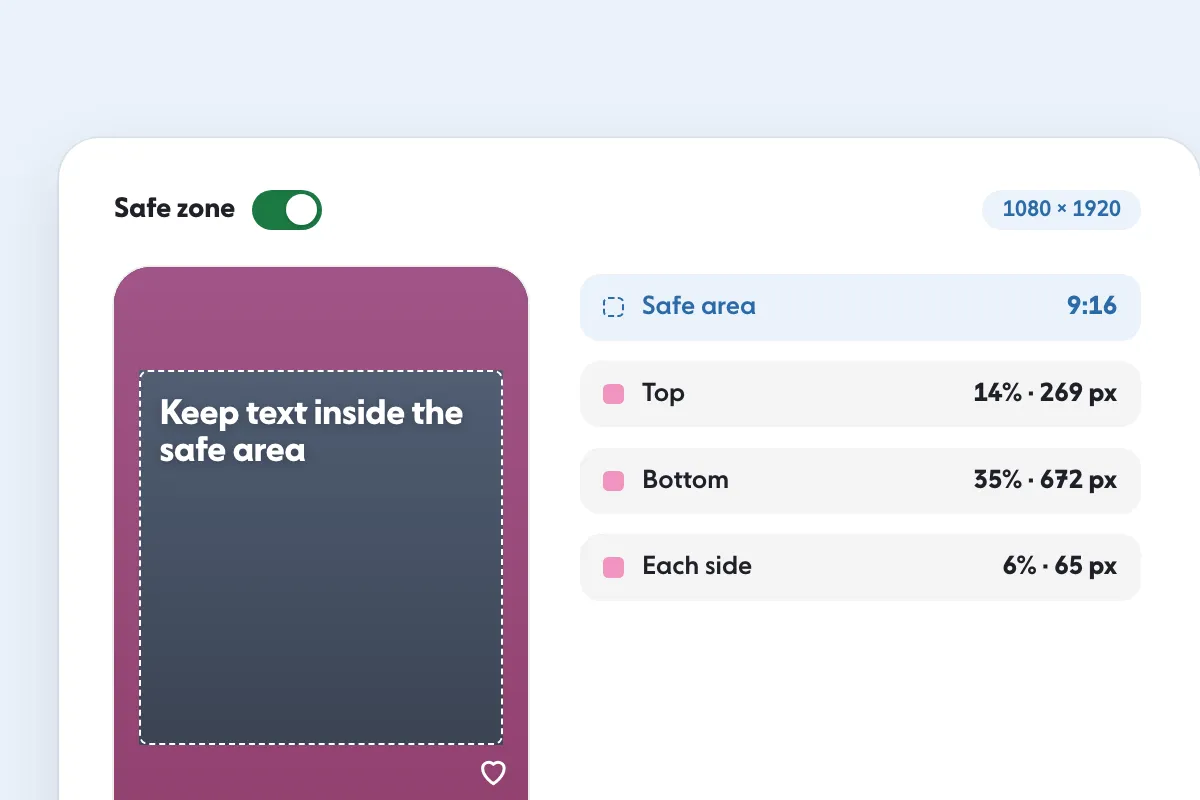
The practical export is 1080 x 1920 pixels. That sits above the 720-pixel minimum, matches the 9:16 recommendation and stays under the 1920-pixel width limit. The full breakdown, including the cover size and the safe zone for captions and buttons, is in Instagram Reels size, and you can check your own frame with the Reel safe zone checker.
Cover images follow different rules. Instagram’s help center recommends a cover photo of 420 by 654 pixels, and says you cannot edit the cover after you have uploaded it. Meta’s documentation lists the cover as a JPEG up to 8 MB in sRGB, with other colour spaces converted to sRGB, while the help center lists PNG or JPG. It says other ratios are cropped to the middle-most 9:16 rectangle, or to the middle square when the Reel is shared to the feed. Pick the cover before you share.
What bitrate and audio settings does Instagram use?
Keep video under 25 Mbps and audio at 128 kbps. Meta’s documentation lists the video bitrate as “VBR, 25Mbps maximum” and the audio as AAC at 128 kbps, with a 48 kHz sample rate at most and one or two channels. VBR means variable bitrate: the encoder spends more bits on busy scenes and fewer on still ones.
Instagram publishes no minimum bitrate and no ideal bitrate. That matters, because most other advice you will read online names a precise figure. If you do not see it on one of Instagram’s pages, it is a guess. Here is how to handle the choice without one:
- Pick your editor’s high-quality preset for vertical 1080 x 1920 H.264.
- Check that the preset’s video bitrate stays under 25 Mbps.
- Export, then look at the file size. If it is under 300 MB, you are inside the limit.
- If it is over, shorten the clip, switch the codec to HEVC or lower the bitrate a little, then export again.
For audio, export AAC. Instagram’s help center lists stereo, or stereo plus 5.1, at 96 kHz or 48 kHz. Meta’s documentation allows one or two channels (mono or stereo) at 48 kHz at most. Stereo at 48 kHz satisfies both. Instagram also lists muted reels among those it shows less often, so do not export without an audio track unless the silence is part of the idea.
How do you upload Instagram videos at the highest quality?
Turn on the setting built for it. Instagram’s help center says “you can chose to always upload reel at the highest quality” and warns that “it may take longer to upload reel of higher quality.” The steps, as Instagram gives them:
- Tap your profile picture in the bottom right to go to your profile.
- Tap Menu in the top right.
- Below Your app and media, tap Media quality.
- Next to Upload at highest quality, tap the toggle to turn it on.
Instagram’s creator FAQ gives the same advice from the other side: “Upload the highest resolution possible. People tend to engage more with high visual quality content.” Its question “How do I upload high resolution reels?” points to the app settings.
Two things Instagram does not say. It does not say what the setting changes in technical terms, such as the bitrate Instagram keeps. And it does not say whether the toggle applies to Stories or feed posts as well; the help page is about reels. For photos, a different page applies: Instagram uploads a photo at the best quality resolution possible “up to a width of 1080 pixels”, and keeps the original resolution for photos between 320 and 1080 pixels wide inside a supported ratio.
If you export from Edits, Instagram says Edits keeps the footage’s full quality on the timeline, lets you export up to 4K, 60 fps and SDR or HDR, and that sharing directly from Edits gives you priority processing. That is the only route where Instagram describes the pipeline from camera to feed.
Why does my Instagram video look blurry?
Quality can fall at three points, and Instagram says so. In its creator post about Edits, the author writes that quality can degrade at upload, processing and delivery, and that high video quality “can help your Reels reach more people.” That gives you a short checklist, in the order you can control it:
- At the source. Film at the highest resolution your phone offers. A clip upscaled from 720 pixels can only look as sharp as 720 pixels.
- At export. Export 1080 x 1920 at 30 or 60 FPS, H.264, under 25 Mbps. A low-bitrate “small file” preset is a common cause of blocky, smeared footage.
- At upload. Switch on Upload at highest quality (steps above) and upload over a stable connection. Instagram says higher quality may take longer to upload, so do not close the app while it works.
- Between editors. Every time a clip is saved, re-encoded or sent through a messaging app, it can be compressed again. Edit once from the original files and export once.
- With the frame itself. A horizontal clip stretched into a vertical frame, or a vertical clip with borders around it, loses resolution and is flagged by Instagram’s own guidance.
Instagram’s help center lists what it may show less often, and several items are quality problems: reels that “are muted, blurry, or low resolution” and reels that “contain borders, logos, or watermarks”. The ranking explainer on Instagram’s site repeats this: it aims to make “low-resolution or watermarked reels, reels that are muted or contain borders, reels that are majority text, or reels that have already been posted on Instagram” less visible. A reel from a person you follow is still shown on their profile and in your feed, according to the help page. The reduced visibility is about recommendation to people who do not follow you.
Watermarks deserve a note of their own. Instagram’s creator FAQ says “Ditch the watermark! The 3rd party watermark on your reel may be impacting its reach.” If you edit in an app that stamps its logo on exports, remove the watermark in the editor before you upload.
What are the file size and length limits for Instagram video?
For a Reel published through Meta’s API, the file can be up to 300 MB and run from 3 seconds to 15 minutes. In the app, Instagram says you can record one or multiple clips that add up to 20 minutes, and that reels over 3 minutes “won’t be recommended to new audiences”. Meta’s Stories entry lists a maximum of 60 seconds and 100 MB, with the same codec, frame rate and bitrate rules, and an aspect ratio range of 0.1:1 to 10:1.
| Limit | Reels | Stories |
|---|---|---|
| Longest video | 15 minutes by API; 20 minutes in the app | 60 seconds |
| Shortest video | 3 seconds | 3 seconds |
| File size | 300 MB | 100 MB |
| Recommended to new people | 3 minutes or less | Not stated |
Full detail on lengths is in how long Instagram Reels can be. The format point is simple: a long 1080 x 1920 clip at a high bitrate can pass 300 MB, so trim the length first, then the bitrate. If you are not sure whether a clip belongs as a Reel at all, Reels vs posts on Instagram compares the two formats. For the Stories frame, see Instagram Story size.
An export checklist you can follow
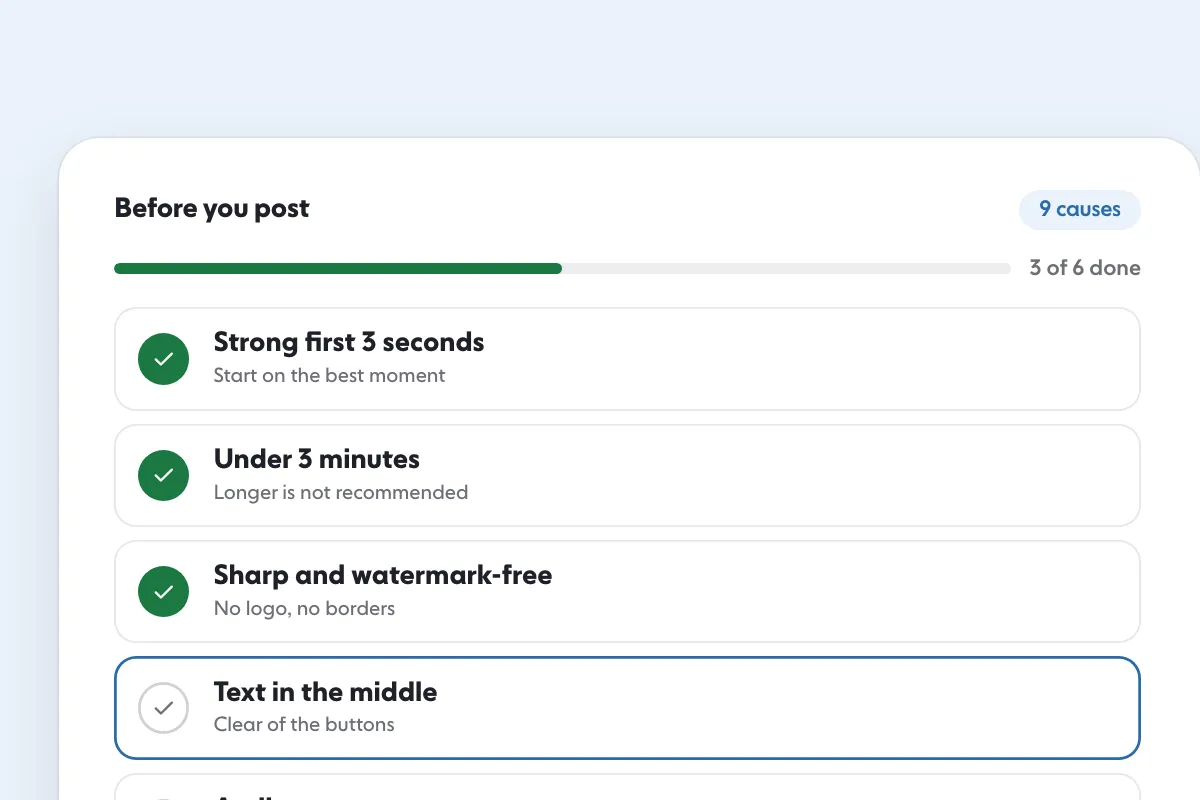
Follow these steps for a typical Reel, whichever editor you use:
- Film vertical, at the highest resolution your phone offers, with the lens clean and the main subject away from the edges.
- Edit from the original files, not from copies that have been shared or screen-recorded.
- Set the project to 1080 x 1920 (9:16) and one frame rate, 30 or 60.
- Check that no watermark, border or logo is added by the editor, and that text does not cover most of the frame.
- Export MP4, H.264, AAC audio, variable bitrate with a maximum of 25 Mbps.
- Look at the file size and length: under 300 MB, and 3 minutes or less if you want new people to be able to see it.
- Play the exported file on your phone from the start to the end.
- In Instagram, turn on Upload at highest quality, upload on a stable connection, pick the cover and share.
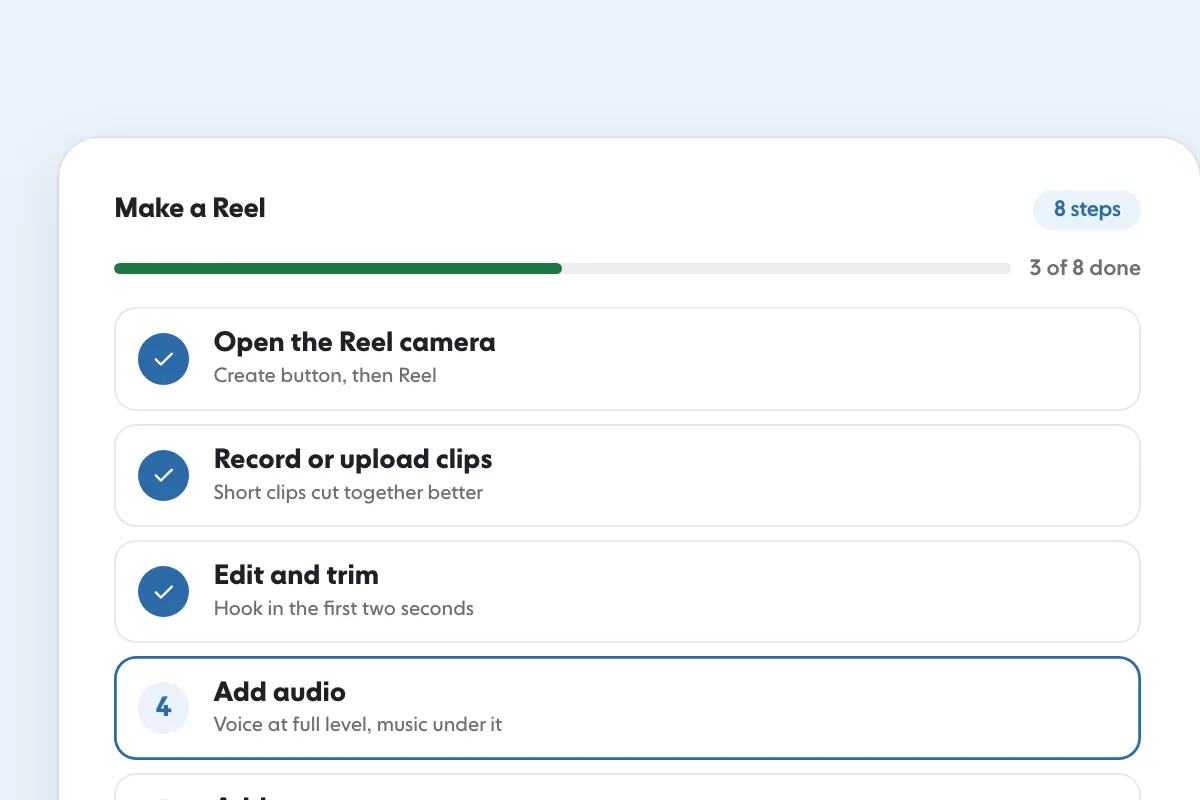
The step-by-step of creating the Reel itself, with effects, audio and the editor, is in how to make a Reel on Instagram.
Does video format affect reach?
Quality affects who Instagram recommends your Reel to, but no format setting is a ranking switch. Instagram’s pages tie recommendation to originality, resolution, vertical framing, absence of watermarks and borders, and a length of 3 minutes or less. They do not state a reach advantage for MP4 over MOV, H.264 over HEVC or 60 FPS over 30. If a post tells you a codec or bitrate “boosts the algorithm”, ask for the Instagram page that says it.
What the pages do say is that a Reel that fails the quality rules is shown less to people who do not follow you. If your Reel is well exported and still gets few views, the format is probably not the cause. Why Instagram Reels get low views goes through the other causes in order.
Format work gets your video through the door in good condition. After that, the people who watch it decide how far it travels. If you want more real Instagram users watching Reels you have already exported properly, Instagram Reels views from real people are one option, and the pricing page shows the plans. Fake followers and bot views are a different thing: they are not people, so they will not watch, share or save your Reel.
What does Instagram not say about video format?
Several popular claims have no official page behind them, so this guide leaves them out:
- A minimum or recommended video bitrate. Instagram gives a 25 Mbps ceiling for API publishing and nothing else.
- A preferred codec or container. H.264 and HEVC, MOV and MP4 are all listed without a ranking.
- Where the app re-compresses video. Instagram says quality can degrade at upload, processing and delivery. It does not publish the settings it uses, so no export recipe can promise an unchanged result.
- What Upload at highest quality changes. The help page gives the steps and the trade-off in upload time, not the technical effect.
- Data Saver and video. Instagram has a Use less data setting, and we could not open a page that describes how it changes video quality, so we say nothing more about it. If videos look soft only on mobile data, check that setting in your own app.
- Different limits by account. Instagram says some features are not available to everyone. The length you see in your editor is the length that applies to you.
These numbers have changed before, and Instagram updates its pages without notice. Every page named in this guide was opened on 18 November 2026.
FAQ
What is the best video format for Instagram?
An MP4 file with H.264 video and AAC audio, filmed and exported vertical at 9:16. Meta’s publishing documentation lists MOV or MP4, H.264 or HEVC, 23 to 60 FPS, a 25 Mbps maximum and 300 MB for a Reel. Instagram’s help center asks for 30 FPS or more and at least 720 pixels.
Is MP4 or MOV better for Instagram?
Instagram accepts both. Meta’s documentation lists the container as MOV or MP4, with no edit lists and the moov atom at the front of the file. It does not say one ranks higher, so choose the one your editor exports cleanly.
What bitrate should I use for Instagram video?
Stay at or under 25 Mbps. Meta’s publishing documentation lists variable bitrate with a 25 Mbps maximum and audio at 128 kbps. Instagram’s pages do not publish a minimum video bitrate, so there is no official floor to aim for.
Why does my Instagram video look blurry?
Instagram says quality can drop at upload, processing and delivery. The usual fixes are to turn on Upload at highest quality, export at 1080 x 1920 or higher, film vertical with no borders and avoid re-saving the file several times. Instagram also shows blurry and low-resolution reels less often.
How do I upload Instagram videos at the highest quality?
Tap your profile picture, tap Menu, tap Media quality under Your app and media, and turn on Upload at highest quality. Instagram warns that higher-quality reels can take longer to upload.
What frame rate is best for Instagram?
30 FPS is the minimum Instagram’s help center gives. Meta’s documentation accepts 23 to 60 FPS, and Instagram’s creator team recommends 60 FPS when you export from its Edits app. Shoot at the rate your motion needs and keep it at 30 or above.
Sources
- Reel size & aspect ratios on Instagram help.instagram.com
- IG User Media developers.facebook.com
- Best Camera & Export Settings for High-Quality Instagram Reels creators.instagram.com
- What kind of reels you may see on Instagram help.instagram.com
- Record a reel on Instagram help.instagram.com
- Image resolution of photos you share on Instagram help.instagram.com
- Instagram Ranking Explained about.instagram.com
- Recommendations on Instagram: What Creators Need to Know creators.instagram.com
- Instagram for Creators: Frequently Asked Questions creators.instagram.com
Related guides
Written by Clara Ivens
Instagram growth editor
Clara Ivens covers Instagram growth on the SocialCaptain blog: followers, Reels, hashtags, bios, captions and how reach works. Each guide follows Instagram's own help pages and announcements, and lists its sources at the end.
All articles by Clara Ivens


