Instagram Auto Reply: 5 Official Ways and Their Limits
Quick answer
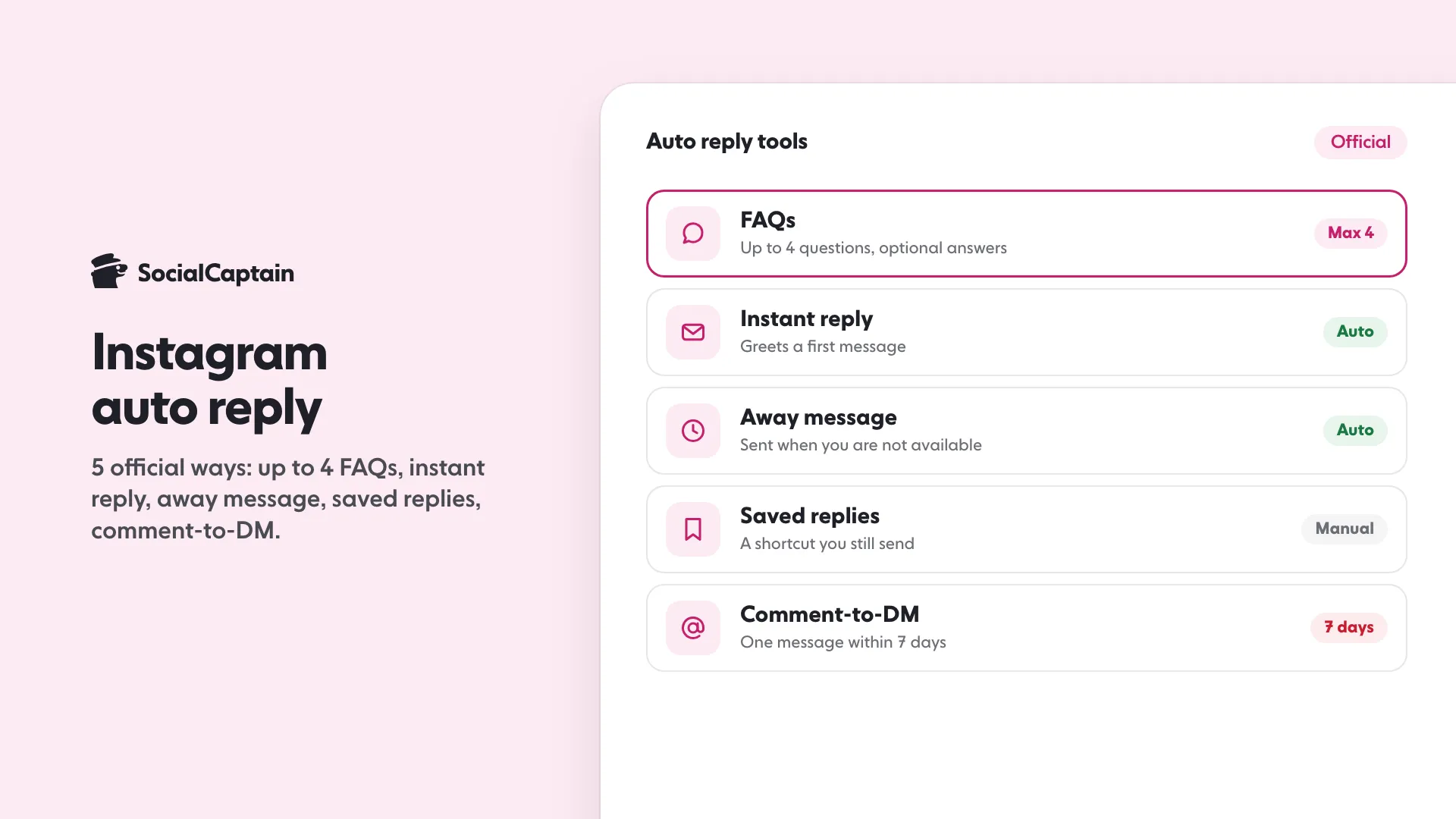
Instagram auto reply comes from 5 official ways: up to four FAQs with automated answers in the app, an instant reply and an away message in Meta Business Suite, saved replies you send yourself, and comment-to-DM replies. Most need a business or creator account.
- FAQs: up to 4 questions with automated answers.
- Comment-to-DM through Meta's API: one message, within 7 days of the comment.
- Apps that take your Instagram login are not allowed.
Based on 13 primary sourcesFact-checked Nov 18, 2026
On this page14 sections
Instagram auto reply comes from 5 official ways: up to four frequently asked questions with automated answers in the Instagram app, an instant reply and an away message in Meta Business Suite, saved replies (a shortcut you still send yourself), and comment-to-DM replies. Most need a business or creator account, and after someone writes to you, Meta’s rules give an app a 24-hour messaging window to answer.
This guide walks through each route as Instagram’s help pages and Meta’s business help pages describe it on 18 November 2026. It shows which account type gets what, how the 24-hour window and the 7-day comment rule work, and what Instagram does not allow, such as apps that ask for your password.
What are the 5 official ways to set up an Instagram auto reply?
- Frequently asked questions. Up to four tappable questions with optional automated answers, set up in the Instagram app.
- Instant reply. A greeting Meta Business Suite sends when someone messages you for the first time.
- Away message. A reply Meta Business Suite sends when you are not available.
- Saved replies. Shortcuts for messages you wrote, set up in the Instagram app. You still press send, so this one is not automatic.
- Comment-to-DM. A message sent in reply to a comment, either through Meta Business Suite on desktop or through an app approved on Meta’s messaging API.
The Automations screen in Meta Business Suite also holds keyword, location, contact information and hours templates. They follow below as extras to these five, not as separate ways.
What counts as an Instagram auto reply?
An Instagram auto reply is a message Instagram or an approved app sends for you after someone messages you or comments, without you typing it at that moment. Meta describes automations as “a way to quickly respond to people who message your business across Messenger, Instagram and WhatsApp.” Saved replies are not in that group, because a person still sends them.
It helps to sort the tools into three layers:
- Inside the Instagram app. Frequently asked questions with automated answers, and saved replies.
- Inside Meta Business Suite. The Inbox automations: instant reply, away message, location, contact information, hours, custom keywords and comment to message.
- Built by a developer on Meta’s messaging API. Apps that Meta has reviewed and approved, including automated comment-to-DM flows.
Every layer is built for answering people who already messaged or commented. For the automation Instagram does not allow, see the section below and our guide to Instagram bots.
Which accounts can use auto replies?
Business and creator accounts can use the in-app tools, and Meta Business Suite adds more for accounts it has connected. A personal account gets none of them.
| Tool | Where | Account type, per Meta | Sends by itself? |
|---|---|---|---|
| Frequently asked questions | Instagram app, Messages, Tools | Business and creator | Yes, when a person taps a question |
| Saved replies | Instagram app, inside a chat | Business and creator (mobile app) | No, you send it |
| Instant reply | Meta Business Suite, Inbox, Automations | Instagram business accounts connected to Meta Business Suite | Yes, on a first message |
| Away message | Meta Business Suite, Inbox, Automations | Same | Yes, when you are not available |
| Custom keywords, comment to message | Meta Business Suite on desktop | Same, desktop only | Yes, after a keyword match |
| Messaging API apps | A third-party app Meta approved | Any Instagram professional account, business or creator | Yes, within Meta’s rules |
Two details in that table matter. Meta’s Inbox automations page says the automations are “available for Facebook Pages, Instagram business accounts and WhatsApp Business accounts connected to Meta Business Suite” and does not name creator accounts, so a creator account should test the feature on its own screen. The messaging API overview, by contrast, says it is available to “any Instagram Professional account for a business” and “any Instagram Professional account for a Creator.”
If you are still choosing between the two professional types, our guide to the creator and business account difference lays out what each one adds.
How do frequently asked questions work as an auto reply?
Frequently asked questions are tappable questions people see when they open a chat with your account, and each one can carry an automated answer. Instagram’s help center says the feature “is only available for business and creator accounts,” and that you can select up to four questions to display.
To set them up in the Instagram app, Instagram’s own steps are:
- Tap Messages at the bottom.
- Tap the options icon, then tap Tools.
- Under Tools, tap Frequently asked questions.
- Tap the toggle next to Show Questions.
- Under Questions, tap Add Question.
- Enter the question and an optional automated response, then tap Save.
You can add, edit or delete a question at any time: tap it, change the question and the automated response, and tap Save. If you already use frequently asked questions on a Facebook business Page through Messenger, Instagram says you can import them.
Two behaviours catch people out:
- The answer is optional. A question without an automated response still opens a chat, but nobody is replied to until you do it yourself.
- The chat lands in Requests. Instagram’s note reads: “If a person selects one of these questions, their message will go to your Requests in Chats. You’ll need to accept their message request in order to reply to their question.” Check Requests as well as your main inbox.
Instagram also shows 4 suggested questions, chosen for your account type, if you have not written your own. To switch them off, open Menu, then Business tools and controls, then Frequently asked questions, and turn off Show questions on Android or Show questions in chat on iOS.
How do saved replies work, and are they automatic?
Saved replies are not automatic. They are keyboard shortcuts for messages you have already written, and a person still reads the chat and sends the reply. That makes them the lowest-risk tool here.
Meta’s business help page for the Instagram professional inbox describes the steps. The feature is for business and creator accounts on the Instagram mobile app:
- Hold down a message you have sent.
- Tap More, then tap Save.
- Create a keyboard shortcut for the message.
- Later, type the shortcut as your message and tap the chat icon that appears to fill in the saved reply.
As you type a new message, Instagram may also offer suggestions that match your existing saved replies. Meta says the content of suggestions and saved replies “isn’t shared unless you tap on the suggestion and send it.”
How do I set up an instant reply and an away message?
Instant reply and away message are set up in Meta Business Suite, not in the Instagram app. Meta describes the instant reply as a way to “reply with a greeting when someone messages you for the first time,” and the away message as a reply “when you’re not available.”
Meta’s overview page also links a setup guide for the Meta Business Suite mobile app. Meta’s desktop steps are:
- Choose the correct business portfolio in the drop-down at the top left of the Meta Business Suite home page.
- Go to Inbox.
- Click Automations.
- Click Create automation in the top right.
- Click the automation you want, such as Auto reply or Away message.
- Click Create automation and complete the on-screen instructions.
Meta calls the greeting “Instant reply” on one page and “Auto reply” on another. Once it is saved, Meta says it “may take a few minutes to appear and you may need to refresh your screen.” You turn it on or off with the toggle below Status, and click Edit to change it.
Four rules from Meta’s pages shape how you use these:
- Same text for everyone. The instant reply is a greeting, so write it as one: say when you usually answer and where the quick answers live.
- Template beats keyword. If a custom keyword automation and a template automation such as your away message are both on and both triggered, Meta says it sends the template reply and not the keyword reply.
- The Meta Business Agent pauses them. Meta says that if you turn on Meta Business Agent, “any existing automations (such as away messages or instant replies) will be paused.”
- Europe and Japan. Meta’s desktop page carries a notice that certain organic messaging features for businesses and ads delivered to and from Europe and Japan will be unavailable.
What can keyword and comment-to-message automations do?
Keyword automations answer a message that contains words you chose, and comment-to-message automations send a message in reply to a comment that contains your keywords. Both live in Meta Business Suite on desktop only, according to Meta. Its desktop page words comment to message as a message reply to comments that contain specific keywords or phrases; its overview page says hashtags, so check which your screen offers.
The limits Meta publishes for custom keywords are specific:
- Up to 5 keywords or phrases per automation.
- Case-sensitive and exact. An automated message “will not be sent unless the keywords match exactly.”
- One automation per keyword. The same keyword or phrase can only be used in one keyword automated response.
- Rich replies. A keyword reply can include photos, videos, buttons and links.
- A 15-minute delay. “Inbox will automatically send a keyword automation to a message after 15 minutes unless you personally respond before then.”
The 15-minute rule changes what the tool is for. It is a safety net for questions you missed, not an instant answer to a buying question.
For anything beyond a template, Meta’s desktop page also describes a Start from scratch builder. You pick a condition (Message is assigned, Label is added or New message received), then one or more actions (Send message, Add labels or Mark as). Meta notes that custom automations “are prioritized over other automations and will be sent first,” which sits oddly with the template-first sentence above. Meta’s two pages describe this differently, so test with a second account before you rely on either.
The remaining templates answer fixed questions: Location, Contact information, and Hours reply to a message asking for those details, and Frequently asked questions suggests questions someone can ask. Two more sort conversations without replying: Identify unanswered messages and Assign admins.
How does an Instagram auto DM from a comment work through Meta’s API?
Comment-to-DM works when an app approved on Meta’s Instagram messaging API sends a private reply to a person who commented on your post, reel, story, Live or ad post. Meta’s developer page lists strict limits, and they decide whether a flow is allowed:
- One message only. “Only one message can be sent to the commenter.”
- Within 7 days. The message must be sent within 7 days of the comment on a post or reel.
- Live is different. For Instagram Live, private replies can only be sent during the live broadcast.
- Follow-ups need an answer. “Follow-up messages can only be sent if the recipient responds, and must be sent within 24 hours of the response.”
- Where it lands. The reply appears in the person’s Inbox if they follow the professional account, and in the Request folder if they do not. It includes a link to the post they commented on.
The app must also be approved. Meta’s app review page says that before an app “can be used by anyone other than people who have a direct role on the app itself, it must first undergo App Review.”
What is the 24-hour messaging window?
The 24-hour messaging window is the period in which an app may send a message to a person after that person has contacted your account. Meta’s messaging policy says the length “depends on the user action that opens it. For most user actions, it lasts 24 hours.”
User actions that open the window include a person sending a message to your account, tapping a call-to-action button, or reacting to a message. Meta’s policy adds one longer case: when a person sends a first message after clicking a Click-to-Direct ad, the window “may last up to 7 days from that message.” Messages inside the window “may contain promotional content,” and people can block or mute a conversation at any time.
Meta’s developer pages also set rules on honesty and handover for automated experiences:
- A human path. “Apps that use the Instagram Messaging APIs must have an escalation path to a human agent.”
- Say it is automated, where the law requires. Automated chats must disclose that a person is dealing with an automated service at the start of a conversation, after a significant lapse of time, and when a chat moves from a human to an automated experience. Meta names California and Germany as markets that need special attention.
- A heads-up on your side. Instagram’s help page on automated chats tells people that accounts using Meta’s developer tools to create automated chats “must tell you when you’re interacting with them” where legally required, and that they may remind you even when it is not required.
For a small account the practical meaning is simple. An automated reply is a first response. If the question needs a human, the person should reach one.
What does Instagram not allow?
Instagram does not allow apps that take your login, automated access without permission, or sending unwanted direct messages in volume. The help pages name each case.
Apps that log in with your password. Instagram’s help page says some non-Instagram apps “offer likes or followers in exchange for your Instagram login details” and that you “shouldn’t use these apps or let anyone else access your Instagram account.” Such apps “can gain complete access to your account,” including your personal messages. If it looks like you shared your login, Instagram says it “may remove any likes or other engagement that they generated,” certain parts of the account may be limited, and the account “may be disabled or terminated.”
Automated access without permission. The page on data scraping lists, among the reasons an account is restricted: “Your account is automating access to, or collecting information in an automated way without our permission,” and “You used an app or service to interact with Instagram in unauthorized ways.”
Message spam. Instagram says it has limits “to stop direct messages that people may not want to get, like spam.” Its warning is specific: “If you were warned about sending too many messages and continue to do so, you may not be able to send more direct messages for a period of time.” The page publishes no number of messages, so any figure you see elsewhere is a guess. One number it does give is the forward limit: a message can be forwarded to up to 5 chats at a time.
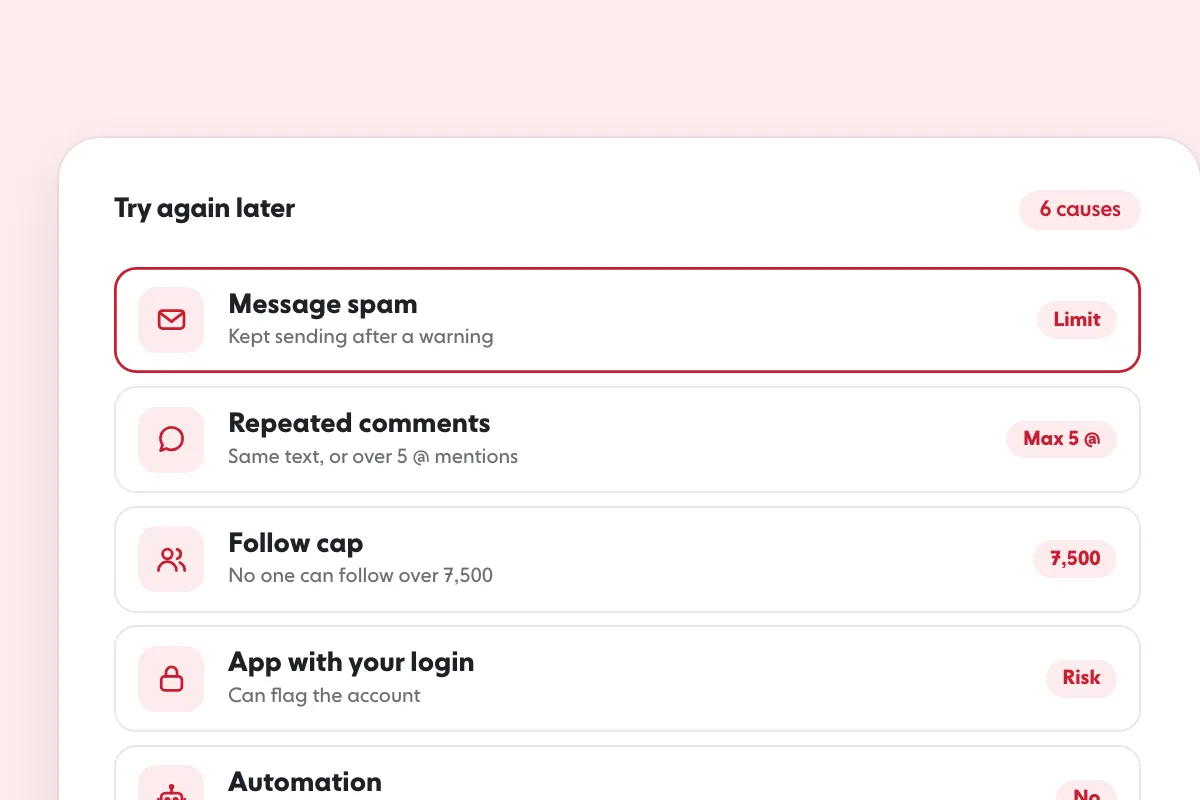
Put plainly, the official tools in this guide answer people who already contacted you, and what Instagram warns about is handing over your login, unauthorized automation and message volume. If you are staring at a “Try again later” screen, Instagram’s action-blocked causes and fixes walk through the next steps.
How should I set up auto replies for a small account?
Start with the tools that carry no risk and build up.
- Check the account type. Switch to a professional account if you are on a personal one.
- Write four questions you answer most, each with a short automated response.
- Save five replies with short shortcuts.
- Connect Meta Business Suite and set an instant reply and an away message.
- Test with a second account, and check Requests daily.
- Consider an approved integration last. Confirm it went through Meta’s App Review and offers a human handover.
Do auto replies help Instagram engagement?
Auto replies protect engagement you already earned, and they do not create new engagement. A person who comments or messages has already shown interest, so a fast answer keeps the conversation alive and a missing one lets it go cold.
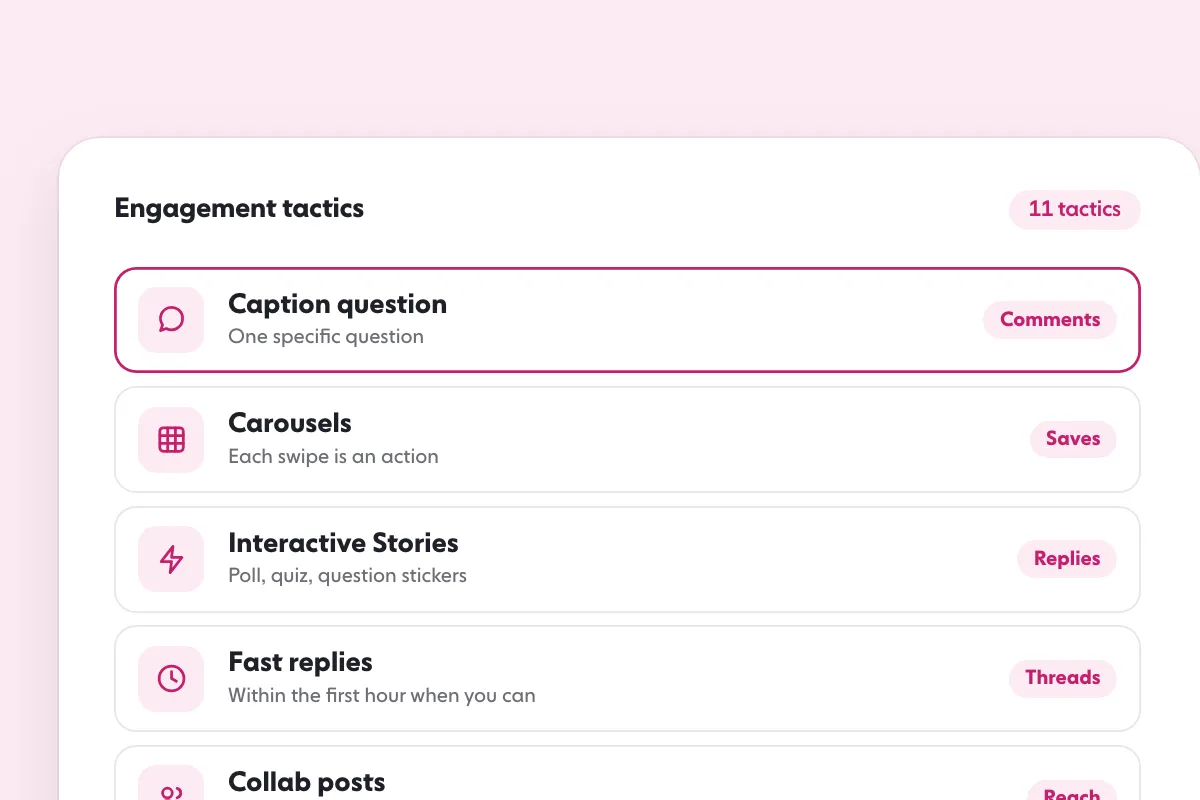
What they cannot do is bring more people to comment in the first place. That comes from content people respond to, from a profile that makes the reason to follow obvious, and from steady, real activity. Our guide on how to increase Instagram engagement covers it step by step, and how to get more likes on Instagram is the cluster’s starting point. If you want real comments on your posts from people in your niche, see Instagram comments, and the plans are on the pricing page.
The guide to Instagram Insights shows where interaction data sits, and our overview of Instagram growth tools covers what to compare before you connect anything.
FAQ
Can you set an auto reply on Instagram without a third-party app?
Yes, in part. Instagram’s own app lets business and creator accounts add up to four frequently asked questions with automated answers. Meta Business Suite adds an instant reply for first messages and an away message. Both are Meta’s own tools and need no outside app.
Does Instagram have an away message?
Yes, in Meta Business Suite, not in the Instagram app. Open Inbox, click Automations, then Create automation and pick Away message. It replies when you are not available. Meta says custom keyword and comment-to-message automations are desktop only.
Are saved replies automatic?
No. Saved replies are shortcuts. You hold a message you sent, tap More, then Save, and give it a keyboard shortcut. Later you type the shortcut and tap the chat icon to fill in the text. You still read the chat and press send yourself.
Can an app send an Instagram auto DM after someone comments?
Yes, as a private reply. Meta’s rules allow one message within 7 days of the comment. Instagram Live is the exception: only during the broadcast. Any follow-up is allowed only if the person answers, and within 24 hours of that answer.
Will Instagram penalise me for automated replies?
Official tools, and apps approved on Meta’s messaging API, are the allowed route. Instagram’s help pages warn against apps that take your login, against automating access without permission, and against sending too many unwanted messages after a warning.
Sources
- Frequently Asked Questions on Instagram Chats help.instagram.com
- Set Up Frequently Asked Questions on Chats help.instagram.com
- Automated chats on Instagram help.instagram.com
- Why you should not use apps that offer likes and followers on Instagram help.instagram.com
- Why your account has been restricted for data scraping and what can you do help.instagram.com
- Why there are limits for sending messages on Instagram help.instagram.com
- About Automated Responses in Meta Business Suite Inbox facebook.com
- Set up Inbox Automations in Meta Business Suite on Desktop facebook.com
- About Professional Features in Instagram Direct Professional Inbox facebook.com
- Send a Private Reply to a Commenter developers.facebook.com
- Overview of Instagram Messaging API developers.facebook.com
- Messenger Platform and IG Messaging API policy developers.facebook.com
- App Review for Messenger API support for Instagram Apps developers.facebook.com
Related guides
Growth services
Instagram Action Blocked: 6 Causes and How Long It Lasts
Written by Lena Ashby
Creator business and analytics editor
Lena Ashby covers the business side of Instagram on the SocialCaptain blog: Insights and engagement rates, when to post, content plans and how creators earn. Each article says where its figures come from and lists its sources at the end.
All articles by Lena Ashby


