How to Fit the Whole Picture on Instagram: 9 Shapes Checked
Quick answer
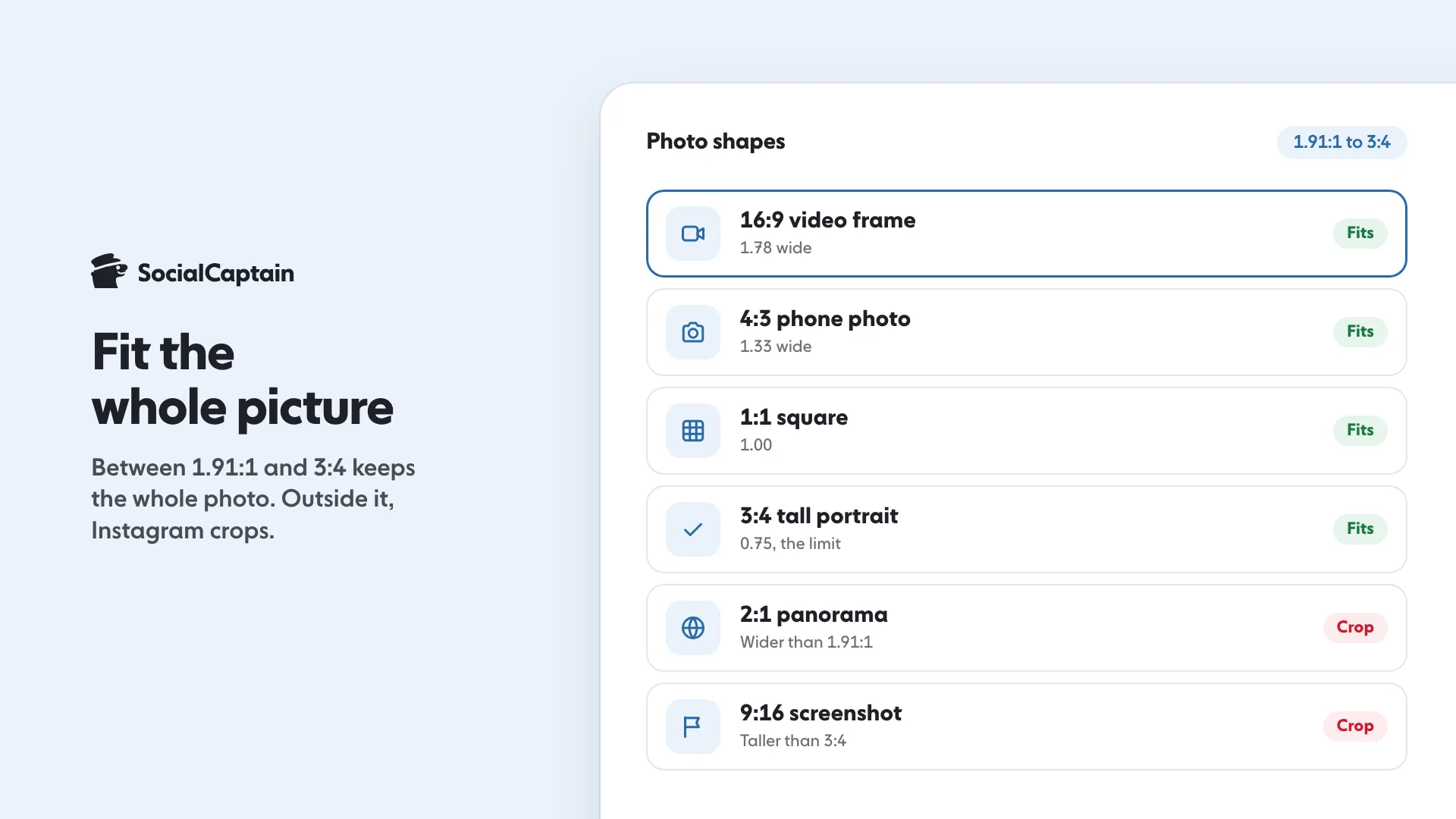
Instagram keeps a whole photo when its shape is between 1.91:1 and 3:4: 1080 pixels wide and 566 to 1440 pixels high. Photos outside that range are cropped to fit a supported ratio. Divide width by height: a result between 0.75 and 1.91 fits.
- Supported shape: 1.91:1 to 3:4, 1080 px wide.
- Photos outside the range are cropped; Reels accept 1.91:1 to 9:16.
- One orientation applies to every slide of a carousel.
On this page10 sections
To fit a whole picture on Instagram, the photo’s width-to-height shape has to be between 1.91:1 and 3:4, which means 1080 pixels wide and 566 to 1440 pixels high. Instagram’s help page says a photo with a shape outside that range “will be cropped to fit a supported ratio”. This guide checks 9 common photo shapes against that rule, gives 4 steps for posting a picture without losing the edges using only the app’s own tools, and works through the arithmetic of what a crop costs you.
For the full list of post sizes, including the 4:5 portrait most photos use, see Instagram post size. This page answers one question: how to keep the whole picture.
Which photo shapes fit on Instagram?
Instagram’s help page on image resolution says it uploads photos “up to a width of 1080 pixels”, and keeps a photo at its original resolution “as long as the photo’s aspect ratio is between 1.91:1 and 3:4 (a width of 1080 pixels with a height between 566 and 1440 pixels)”. Divide the width by the height. A shape fits when the answer is between 0.75 (which is 3:4) and 1.91.
| Photo shape | Width ÷ height | Fits whole? |
|---|---|---|
| 2:1 (panorama) | 2.00 | No, wider than 1.91:1 |
| 16:9 (video frame) | 1.78 | Yes |
| 3:2 (many cameras) | 1.50 | Yes |
| 4:3 (many phone cameras) | 1.33 | Yes |
| 1:1 (square) | 1.00 | Yes |
| 4:5 (portrait) | 0.80 | Yes |
| 3:4 (tall portrait) | 0.75 | Yes, the limit |
| 2:3 (tall camera photo) | 0.67 | No, taller than 3:4 |
| 9:16 (phone screenshot or story) | 0.56 | No, much taller than 3:4 |
The middle column is plain division. The last column applies Instagram’s stated range: anything outside it is cropped.
The page also gives two size rules. If you share a photo narrower than 320 pixels, Instagram enlarges it to 320 pixels wide. If you share one wider than 1080, it sizes it down to 1080. So a 4000-pixel-wide photo does not look sharper than a 1080-pixel one on Instagram; it is simply reduced.
What are the 4 steps to post the whole picture?
1. Measure the photo
Find the pixel width and height in your phone’s photo information, then divide width by height. If the result is between 0.75 and 1.91, go to step 2. If not, go to step 3.
2. Frame it in the app
In the Instagram app on iPhone, Instagram’s help page for posting a photo gives this path: tap Create at the top (or swipe right anywhere in Feed), tap POST, choose the photo, then tap Next. Instagram’s crop page then says to tap Edit, tap Adjust, and touch the screen and pinch to zoom, move the photo and “adjust how it fits within the frame”, using the grid to help you frame it. Tap Back, then Done to save. On a computer, the same page says you move the photo and adjust how it fits, and you can drag a slider to zoom, then click Next.
The point of this step is to leave the framing alone when the shape already fits. If the photo is inside the range, do not zoom in; zooming in is what cuts the edges off. Check that all four corners of the photo are still inside the frame.
3. Fix a photo outside the range before you upload
Instagram’s pages give no setting that makes a too-wide or too-tall photo fit uncropped; they say it crops. So change the picture first. Any photo editor on your phone can do this: place the photo on a larger canvas so the whole canvas lands inside the range, for example a canvas that is 1080 wide and 1440 high for a tall photo (3:4), or 1080 wide and 566 high for a wide one (1.91:1). The empty space becomes a border. Pick a colour that matches the picture or your feed. This is a workaround, not an Instagram feature, and it means the picture is a little smaller inside the frame. The worked example below puts numbers on that cost.
Another option for a very wide picture is to split it across several slides of a carousel. All slides share one shape, so make each slice the same size.
4. Check before you post
Open the preview on the last screen, look at each corner, and then share. After you post, open the post itself. The post is where the whole picture shows.
What does a crop actually cost? A worked example
The figures below are our own arithmetic on made-up photo sizes, not Instagram numbers. They show how much you lose either way when a photo is outside the range, so you can pick the cheaper option.
Example 1: a 2:1 panorama, 4000 × 2000 pixels. Its ratio is 2.00, a little wider than the 1.91 limit. To fit by cropping, keep the full height of 2000 and cut the width to 2000 × 1.91 = 3820 pixels. That removes 180 pixels, 90 from each side, which is 4.5% of the width. That is a small loss, and for many photos cropping beats adding a border.
Example 2: a 2:3 photo, 2000 × 3000 pixels. Its ratio is 0.67, taller than the 0.75 limit. Two ways to fit it:
- Crop: keep the full width of 2000 and cut the height to 2000 ÷ 0.75 = 2667 pixels. That removes 333 pixels of height, 11.1% of the picture, usually from the top and bottom.
- Pad: scale the photo to a 1080 × 1440 canvas. The photo is 3000 tall, so scale it by 1440 ÷ 3000 = 0.48, which gives 960 pixels wide. The remaining 120 pixels of width becomes 60 pixels of border on each side, 11.1% of the frame. Nothing is cut, and the picture shows a little smaller.
Example 3: a 9:16 phone screenshot, 1080 × 1920 pixels. Its ratio is 0.5625, much taller than 0.75. Cropping to 1080 × 1440 removes 480 pixels of height, which is 25% of the picture. Padding to a 1080 × 1440 canvas scales the screenshot by 1440 ÷ 1920 = 0.75 to 810 pixels wide, leaving 135 pixels of border on each side, 25% of the frame. For a screenshot with text near the top and bottom, padding is the safer choice, because cropping would cut the text.
| Photo (our example) | Ratio | Crop to fit | Pad to fit |
|---|---|---|---|
| 4000 × 2000 panorama | 2.00 | Lose 4.5% of the width | 1080 × 566 canvas, about 5% blank top and bottom |
| 2000 × 3000 tall photo | 0.67 | Lose 11.1% of the height | 1080 × 1440 canvas, 11.1% blank at the sides |
| 1080 × 1920 screenshot | 0.56 | Lose 25% of the height | 1080 × 1440 canvas, 25% blank at the sides |
The panorama row’s padding figure works the same way: scaled to 1080 wide, the 2:1 photo is 540 pixels high, which leaves 26 pixels spare in a 566-pixel canvas, 13 at the top and 13 at the bottom, about 4.6% of the frame height.
The rule of thumb that falls out: the further the photo is outside the range, the more padding beats cropping. A small overshoot is cheap to crop. A large one costs a quarter of the picture.
Which shape fits each part of Instagram?
Feed photos are only one surface. Each has its own limit, and the pages below were opened on 2026-11-18.
| Where | Shape Instagram’s pages state | Source |
|---|---|---|
| Feed photo | 1.91:1 to 3:4, 1080 px wide, 566 to 1440 px high | Image resolution help page |
| Carousel | Up to 20 photos and videos; one orientation (square, portrait or landscape) for the whole post | Multi-photo help page |
| Reel | Aspect ratio between 1.91:1 and 9:16; minimum frame rate 30 FPS; minimum resolution 720 pixels | Reel size help page |
| Reel cover | Recommended 420 px by 654 px (a 1:1.55 ratio) | Reel size help page |
| Story ad | 9:16 recommended to capture the whole screen | Meta ads guidance on aspect ratios |
| Profile grid | A “tall grid”; the tile’s exact size is not given on the pages we opened | Instagram’s head, on Threads |
Two limits of this table are worth stating. Instagram’s help pages that we opened give no pixel size for an ordinary, unpaid Story, so this guide gives none; for a Story size that people commonly use, see Instagram Story size. The only Stories figure in the table comes from Meta’s page on aspect ratios for ads, which says that for Stories, Status and Reels placements “9:16 is recommended to capture the whole screen”. That is guidance for ads, and a photo shared to your own Story is a separate case.
For Reels, the stated range is wider than for photos. A reel can be as tall as 9:16, which a feed photo cannot. A phone screenshot that gets cropped as a feed photo can be posted whole as a reel. Instagram also lets you upload reels at the highest quality: tap Profile, tap Menu, and under “Your app and media” tap Media quality, then turn on “Upload at highest quality”. It says that may take longer to upload.
How do carousels handle different photo shapes?
All slides share one shape. Instagram’s help page on multi-photo posts says “the orientation you choose (square, portrait or landscape) affects all of the photos or videos in your post. You can’t select a different orientation for each photo or video.” A carousel can hold up to 20 photos and videos. On iPhone the path is: tap Create, tap POST, tap SELECT MULTIPLE, pick the photos, and tap a photo to adjust how it fits the frame.
So if one slide is a panorama and another is a tall portrait, one of them will lose its edges. Make the slides the same shape before you upload. Three planning rules help:
- Pick the shape from the hardest slide. If one slide is a 4:5 portrait and the rest are square, choose portrait for all, then check how the square ones sit in it.
- Keep important content in the middle. Whatever the shape, the centre survives a small crop.
- Check each slide, not just the first. In your feed you see the first photo with a row of dots below it. The others only show when someone swipes.
After you share a carousel, Instagram says you can reorder the content, remove photos or videos, and edit your caption or location, but you cannot add new photos or videos; you can delete the post. That makes the pre-upload check more important. See Instagram carousel for how to plan them.
What about the profile grid and Stories?
The profile grid is its own display. On 20 January 2025 Instagram’s head wrote on Threads that “We launched a new tall grid on the Instagram profile this week”, and said it started there “because most photos and videos that are uploaded to Instagram at this point are vertical and rectangles do a better job showing off those photos and videos”. The post also said highlights might move into the grid as a tab and that a tool to reorder the whole grid was planned. It gives no tile dimensions, and we found none on the help pages we opened, so we do not state a grid size here.
What follows from that: because the tile is a different shape from a post opened in full, a post can look different in the grid from how it looks open. Use the free Instagram grid preview tool to see how a post will sit before you share it. The open post is where your whole picture shows.
Stories are a different format. Instagram’s page on where a story appears says photos and videos from your story “don’t appear on your profile grid”, so the grid is not a concern for them. For their sizes, see Instagram Story size.
Which fix should you pick?
| Your situation | What to do | Why |
|---|---|---|
| Photo is 1.91:1 to 3:4 | Post as is; do not zoom | It already fits whole |
| Slightly outside (like a 2:1 panorama) | Crop a thin strip, or add a thin border | The loss is small either way |
| Far outside (like a 9:16 screenshot) | Pad to a 3:4 canvas or post it as a Reel | Cropping loses about a quarter |
| Text or a face near the edge | Pad, never crop | Crops cut the edges first |
| Several photos of different shapes | Make one shape for all slides before upload | A carousel has one orientation |
| A long panorama you want seen in full | Split it into equal slices across slides | Slides are one shape, so the slices must match |
What should you avoid?
- Posting a photo smaller than 320 pixels wide. Instagram’s page says smaller photos are enlarged to 320 pixels wide.
- Posting at more than 1080 pixels wide and expecting more detail. Instagram sizes photos down to 1080 wide.
- Mixing shapes in one carousel. One of the slides will be cropped.
- Trusting the thumbnail. The grid tile is not the post.
- Zooming in to “fill” the frame. Zooming is what cuts the edges.
Instagram also tells you how to get the best result: use the most recent version of the app, upload a photo at least 1080 pixels wide within the supported range, and use a phone with a good camera.
A well-framed photo is the start; reach is the other half. For real people from your niche to see it, see how our Instagram followers service works, and pricing lists the plans.
FAQ
How do I post a full picture on Instagram without cropping?
Use a photo whose shape is between 1.91:1 (wide) and 3:4 (tall), which is 1080 pixels wide and 566 to 1440 pixels high. Instagram’s help page says photos outside that range are cropped to fit a supported ratio. Do not zoom in during framing, because zooming cuts the edges.
Why does Instagram crop my picture?
Its help page says that if the aspect ratio of a photo is not supported, it will be cropped to fit a supported ratio. A very wide panorama or a very tall photo falls outside the range.
What is the biggest picture that fits on Instagram?
Instagram uploads photos at up to 1080 pixels wide. A photo wider than that is sized down to 1080, and one narrower than 320 pixels is enlarged to 320.
Can I use different shapes in one carousel?
Not in the same post. Instagram’s help page says the orientation you choose (square, portrait or landscape) affects all of the photos or videos in your post, and you can’t choose a different one for each.
Do I need a third-party app to fit a whole photo?
Not for photos inside the supported shape range. In the Instagram post screen you pinch and drag to frame each photo. A photo outside the range needs its canvas changed first, which any phone photo editor can do.
Can I post a tall picture whole as a Reel or Story instead?
A reel can have an aspect ratio between 1.91:1 and 9:16, so a 9:16 screenshot fits whole as a reel. For Stories, Meta’s ads guidance recommends 9:16 to capture the whole screen. Instagram’s help pages give no pixel size for an ordinary Story.
Sources
- Image resolution of photos you share on Instagram help.instagram.com
- Crop your photo on Instagram help.instagram.com
- Share a post with multiple photos or videos on Instagram help.instagram.com
- Reel size & aspect ratios on Instagram help.instagram.com
- Post a photo on Instagram help.instagram.com
- Best practices for aspect ratios in Meta ads facebook.com
- Where your Instagram story appears help.instagram.com
Related guides
Formats and sizes
Instagram Post Size: 4 Formats and Dimensions for 2026
Formats and sizes
Instagram Story Size: 1080 x 1920 and the Safe Zone
Formats and sizes
Instagram Carousels: How to Make One in 7 Steps
Written by Clara Ivens
Instagram growth editor
Clara Ivens covers Instagram growth on the SocialCaptain blog: followers, Reels, hashtags, bios, captions and how reach works. Each guide follows Instagram's own help pages and announcements, and lists its sources at the end.
All articles by Clara Ivens


